Detecting FTP Brute-Force Attacks Using Wireshark
February 1, 2025 • Traffic Analysis
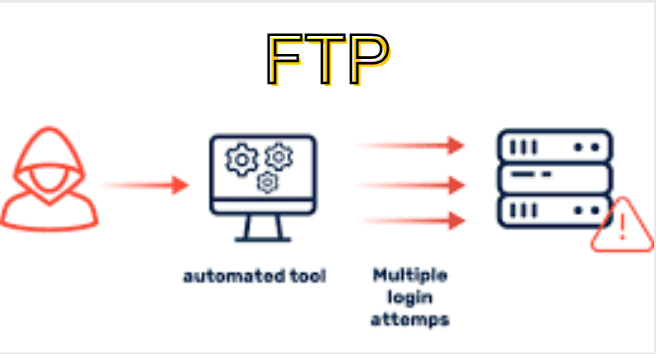
In this walkthrough, we’ll use Wireshark to analyze a packet capture and detect a brute-force attack on an FTP server. You’ll learn how to filter FTP traffic, identify repeated login attempts, and trace the attacker's IP address.
Introduction
Brute-force attacks involve an attacker trying many username and password combinations to gain unauthorized access to a service like FTP. Since FTP transmits data in plain text, these attacks can often be identified by analyzing network traffic.
In this guide, I’ll walk you through how I used Wireshark to detect a brute-force FTP attack. We’ll cover how to filter traffic, recognize suspicious patterns, and confirm whether the attacker successfully logged in—all in a simple, step-by-step way.
📝 Note: When analyzing logs or packet captures, it’s easy to feel overwhelmed. To stay focused, always ask:
- What am I looking for? Are you investigating a login anomaly, malware activity, or data exfiltration?
- When did it happen? Narrowing the timeframe helps reduce noise.
- Where should I look? Focus on relevant systems, protocols, or hosts.
- What can I ignore? Filter out normal, known-good activity.
Filtering FTP Traffic
The first step is to filter for FTP traffic using ftp as the display filter.
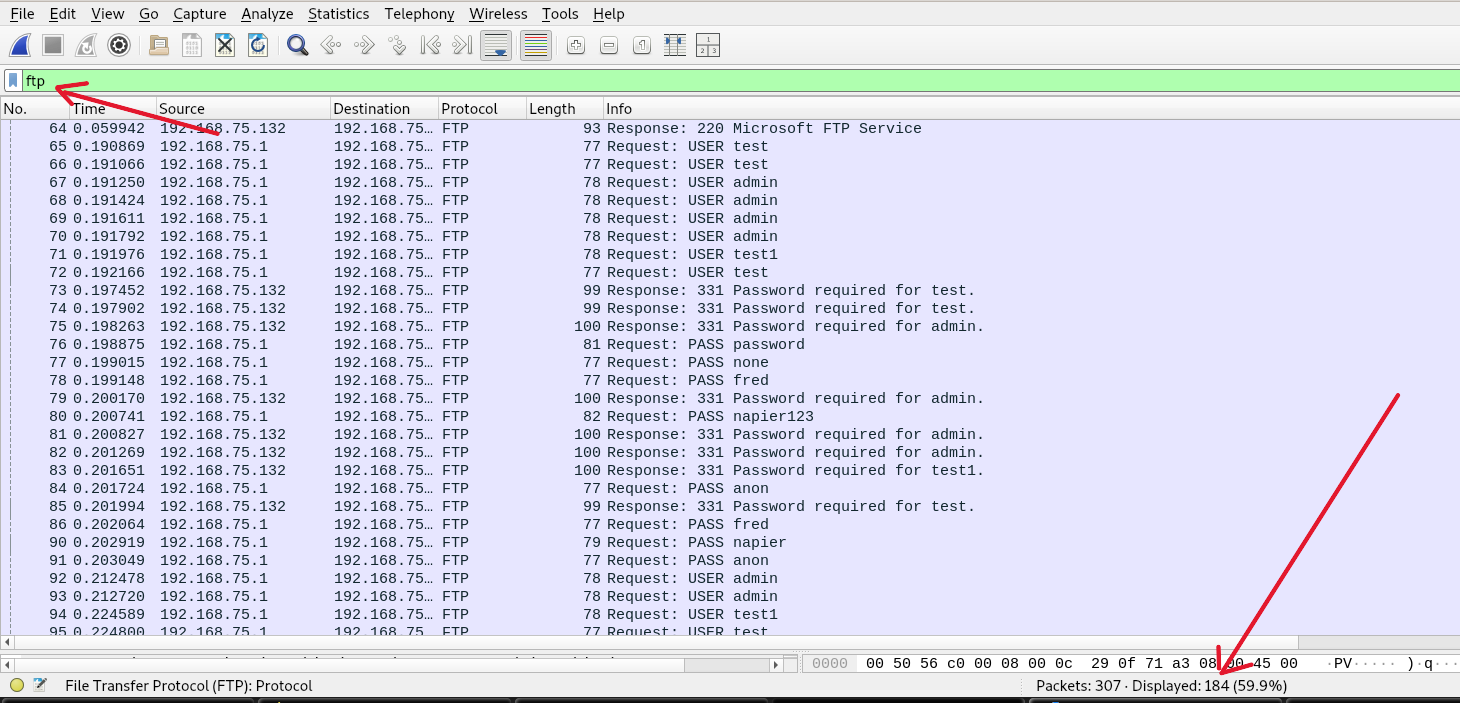
As shown in the image above, we filtered the traffic to only show FTP packets—184 out of 370 packets—helping reduce noise and focus on the relevant data.
Repetitive Login Attempts
Brute-force behavior is evident when you see multiple USER and PASS commands within a short time span, especially from the same source IP.
Use the following filters:
wiresharkftp.request.command == "PASS"
ftp.response.code == 530
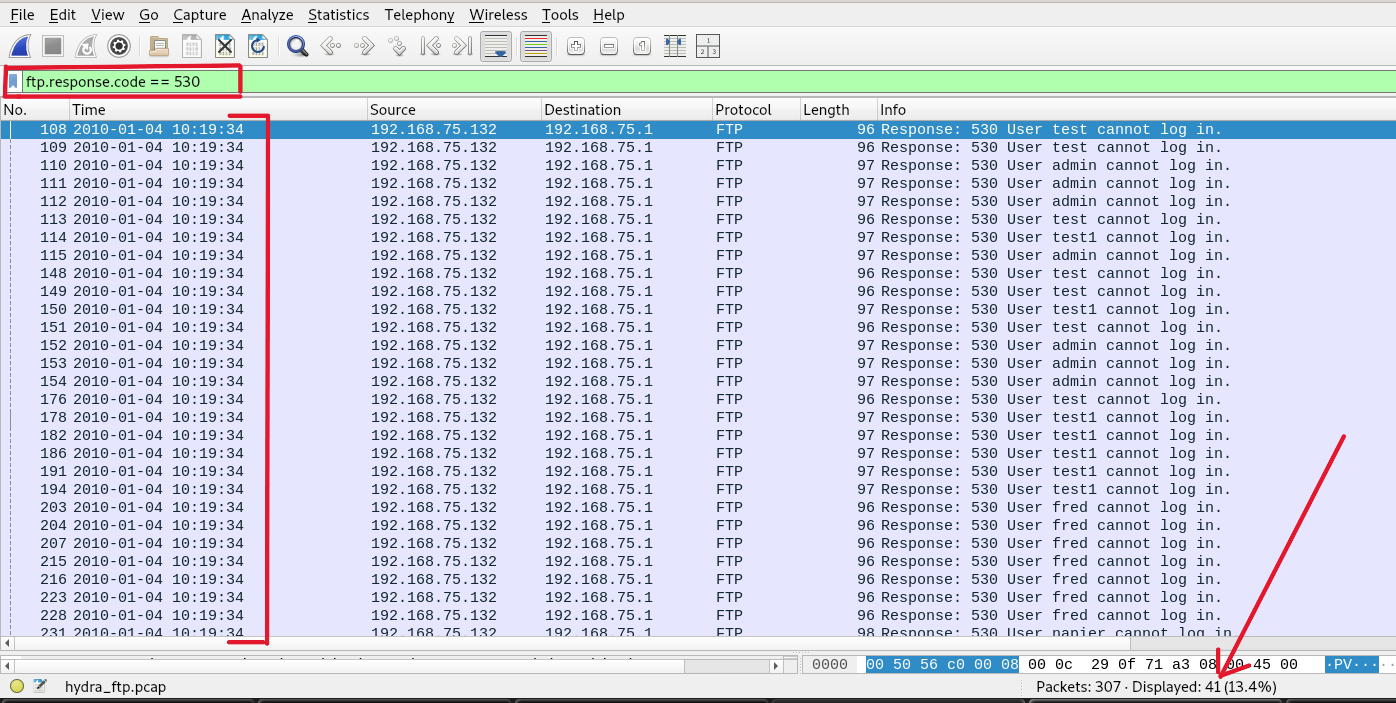
The image above shows several failed login attempts occurring within seconds—clear signs of an automated brute-force tool.
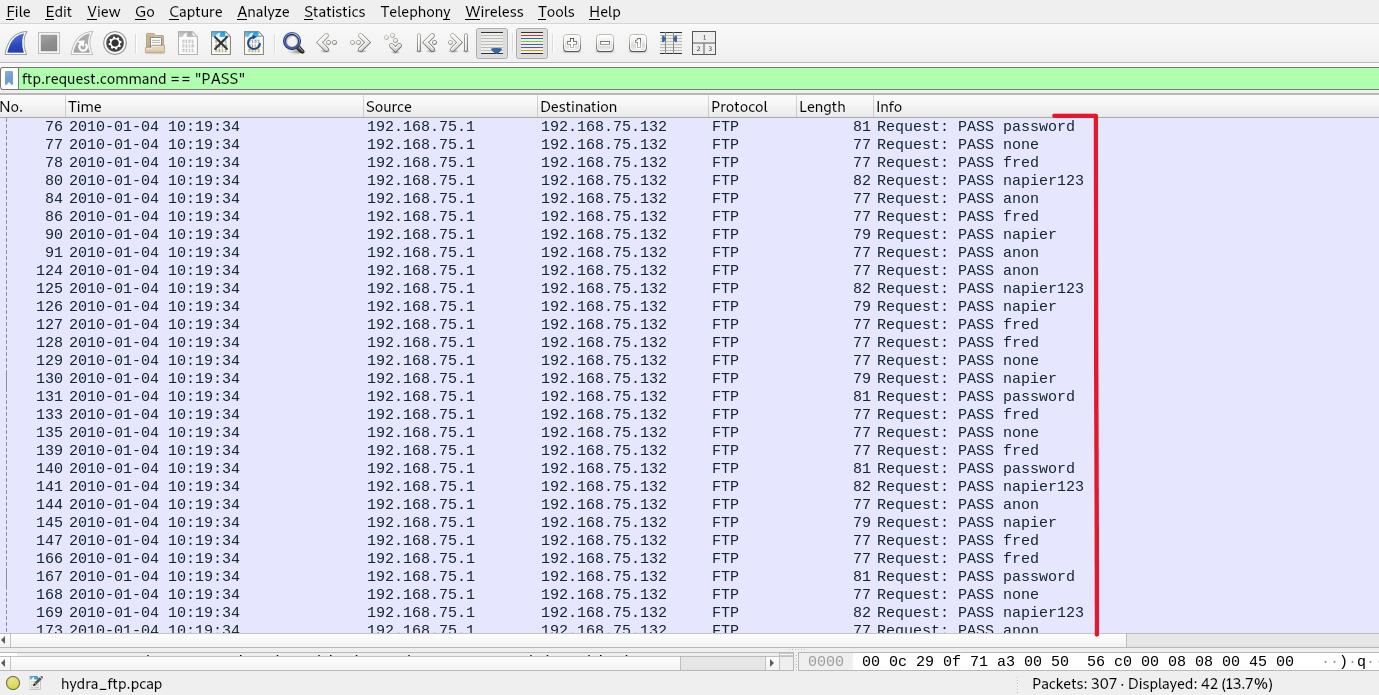
You can also see the list of attempted usernames and passwords, along with server responses indicating login failures.
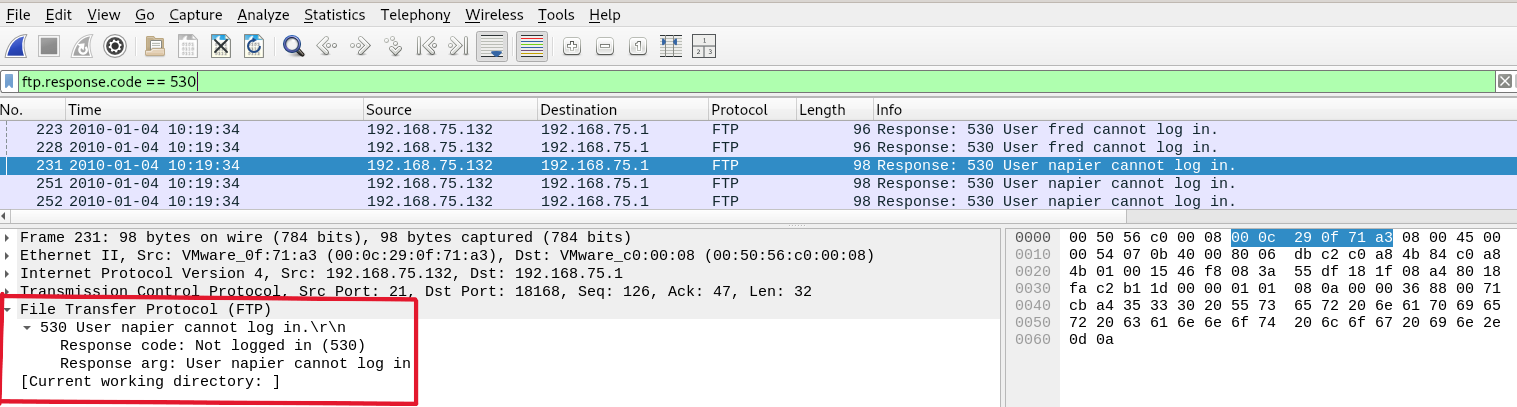
The response code 530 and message “User napier not logged in” confirms authentication failures.
Identifying a Successful Login
To check for a successful login, use the filter:
wiresharkftp.response.code == 230
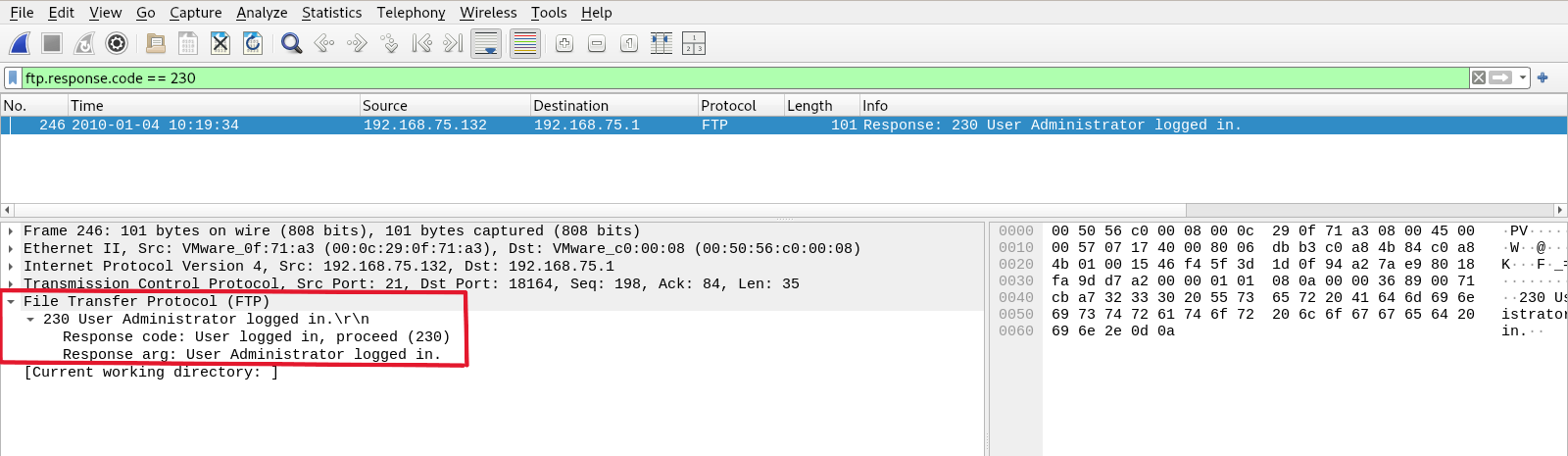
Here, we see that the user “administrator” successfully logged in. The response code 230 confirms the login was accepted.
To determine the password used, follow the TCP stream:
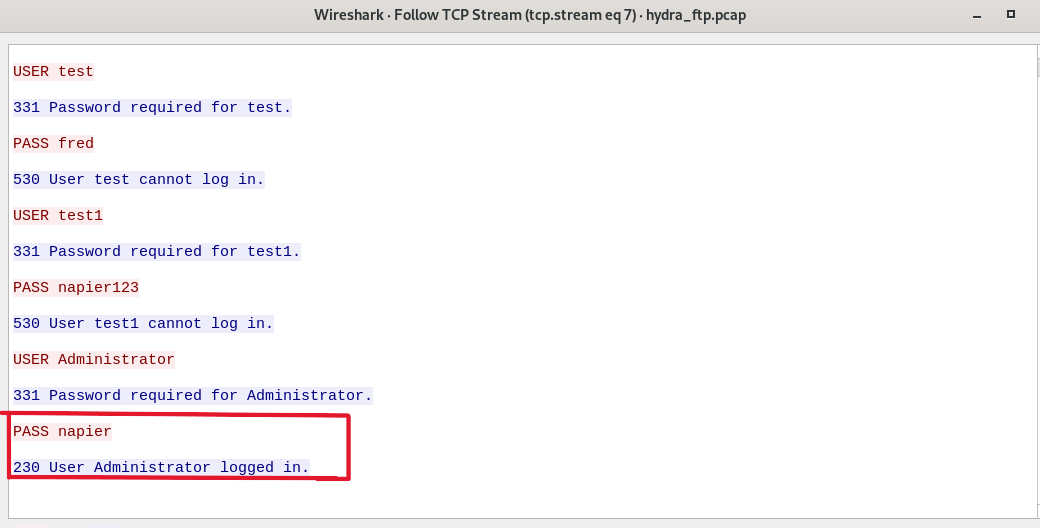
In this case, the password used was napier. Since FTP transmits data in plain text, all credentials are visible in the packet capture.
🔐 Once a successful login is confirmed, the security team should immediately isolate the affected system and begin incident response procedures.
Important FTP Response Codes
✅ Positive Completion Replies
| Code | Meaning |
|---|---|
| 200 | Command OK |
| 220 | Service ready for new user |
| 221 | Service closing control connection |
| 226 | Closing data connection |
| 230 | User logged in, proceed |
🟡 Positive Intermediate Replies
| Code | Meaning |
|---|---|
| 331 | Username OK, need password |
| 332 | Need account for login |
⚠️ Transient Negative Replies
| Code | Meaning |
|---|---|
| 421 | Service not available |
| 425 | Can’t open data connection |
| 450 | File unavailable |
| 451 | Local error in processing |
| 452 | Insufficient storage space |
❌ Permanent Negative Replies
| Code | Meaning |
|---|---|
| 530 | Not logged in |
| 550 | File unavailable or access denied |
🔍 Useful Wireshark Filters for FTP
Basic FTP Commands
| Filter | Purpose |
|---|---|
ftp | Show all FTP protocol packets |
ftp.request | Show FTP client commands |
ftp.response | Show FTP server responses |
ftp.request.command == "USER" | Filter only USER commands |
ftp.request.command == "PASS" | Filter only PASS (password) commands |
ftp.response.code == 230 | Show successful logins |
ftp.response.code == 530 | Show failed login attempts |
ftp.response.code == 550 | Show file access denied errors |
Data Transfer-Related
FTP uses two channels:
- Control: TCP port 21 (commands)
- Data: Random port (file transfers)
| Filter | Purpose |
|---|---|
tcp.port == 21 | Show control channel traffic |
ftp-data | Show data transfer sessions |
tcp.port == 20 | Active mode file transfer source port |
ftp.request.command == "STOR" | Show file upload attempts |
ftp.request.command == "RETR" | Show file download attempts |
This analysis gives a clear picture of how brute-force attacks on FTP look in Wireshark. By focusing on login attempts, timing, and server responses, you can easily detect unauthorized access attempts and take the necessary steps for response and containment.